
Besides creating, deleting, and formatting partitions, the native Windows Disk Management tool has the ability to shrink and extend partitions. Many people want to shrink a partition to create new volumes or extend another one. However, they often find that the "Shrink Volume" option is grayed out in Windows 11 Disk Management. In some cases, the Shrink Volume option is activated, but users still cannot shrink the partition. This article explains why Disk Management cannot shrink a volume in Windows 11 and what to do when you are unable to shrink a partition on your computer.
Why Cannot Shrink Partition in Windows 11 via Disk Management
There are 3 common reasons why you can't shrink a volume in Windows 11 with the Disk Management tool:
Reason 1 - File System Is Not Supported
Windows Disk Management can only shrink partitions that are formatted with the NTFS file system; FAT32 and other types of partitions are not supported. Therefore, if you right-click an EXT2/3 or FAT32 partition in Windows 11 Disk Management, the Shrink Volume option will be grayed out.
Reason 2 - File System Error
After running a Windows computer for a period of time, many partitions may develop file system errors. In most cases, you won't notice any difference in daily usage, but you will encounter issues when trying to shrink or extend partitions.
When you right-click an NTFS partition with a file system error, the "Shrink Volume" option might be activated, but you cannot enter the amount of space to shrink, or the Shrink button remains disabled.
Reason 3 - There Are Unmovable Files
When you right-click a partition and select the "Shrink Volume" option, you might see a tip in the pop-up window: "You cannot shrink a volume beyond the point where any unmovable files are located". These unmovable files include the paging file, hibernation file, and other large system-required files. If such files exist, you may encounter this issue when shrinking the C drive in Windows 11 Disk Management. Even though there is plenty of free space on the partition, Disk Management will only allow you to shrink a very small amount of space.
What to Do When You Are Unable to Shrink Volume in Windows 11
Here are 3 methods to fix the issue when you cannot shrink a volume in Windows 11 via Disk Management:
- If you want to shrink a FAT32 partition, Disk Management cannot help you; run NIUBI Partition Editor instead.
- Repair the file system if the Shrink button is disabled or if you cannot enter an amount of space.
- Shrink the volume with NIUBI Partition Editor, as it is able to move those "unmovable" files. Therefore, you can shrink the partition to a much smaller size.
Compared to other tools, NIUBI Partition Editor has powerful 1-Second Rollback, Virtual Mode, Cancel-at-will and Hot-Clone technologies to protect your system and data. It provides a free edition for Windows 11/10/8/7/Vista/XP home computer users.
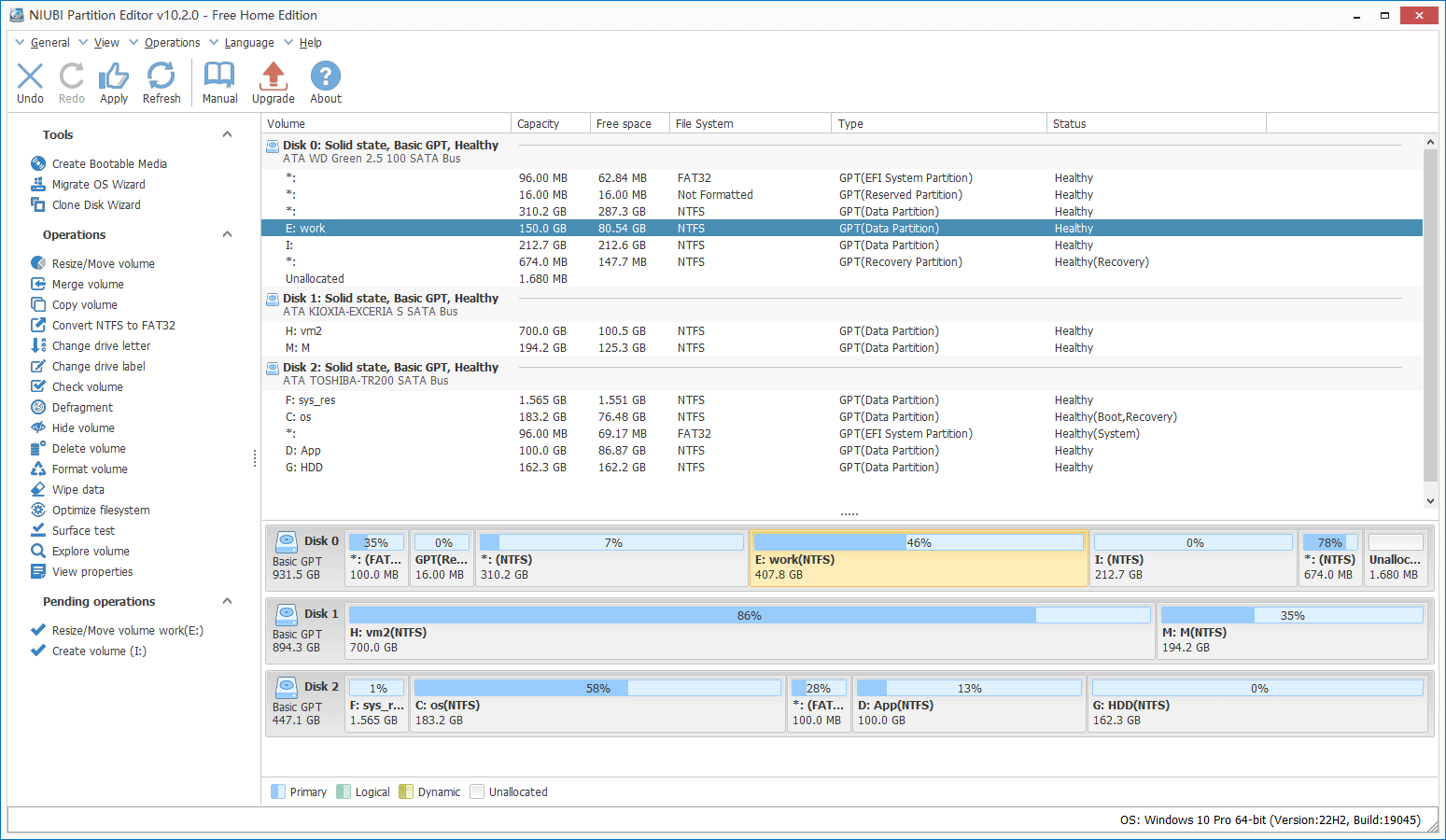
Download and launch this tool. You will see all disk partitions with layout and other information on the main window.
Solution 1 - Repair The File System
How to repair the file system when you cannot shrink a data partition in Windows 11:
- Press the Windows + R hotkeys, type cmd, and press Enter.
- In the command prompt window, type chkdsk D: /v /f and press Enter. (Replace D with the drive letter of the partition you want to shrink).
How to repair the file system when you cannot shrink volume C in Windows 11:
- Click the Windows logo on the taskbar, type cmd, and click "Run as Administrator".
- In the command prompt window, type chkdsk C: /v /f and press Enter.
- It will report that the volume cannot be locked and ask if you want to schedule this volume to be checked the next time the system restarts. Type Y and press Enter.
- Reboot your computer, and Windows will fix the file system error automatically.
Solution 2 - Shrink Volume with NIUBI Partition Editor
If you cannot shrink a partition in Windows 11 because of unmovable files or because the partition is FAT32, watch the video to see how to shrink the partition:
Besides shrinking partitions in a Windows 11/10/8/7/Vista/XP computer, this free partition software helps you perform many other disk partition management operations, such as merging, extending, moving, converting, defragging, hiding partitions, erasing data, and scanning for bad sectors.
 © 2009 - NIUBI Technology All Rights Reserved. |