
A hard disk drive is an indispensable component of any computer, but the disk may become full or damaged after running for a period of time. Nobody wants to install a new disk and start completely from scratch. It is much more efficient if you can clone the disk in Windows 11 to migrate your operating system and programs. If you are using a traditional mechanical disk for your operating system and programs, you had better clone Windows 11 to an SSD. Since the read and write speeds of an SSD are much faster, your computer's performance will be significantly improved without doing anything else. To clone Windows 11 to an SSD or another drive, there are many tools available on the market. This article introduces how to clone a Windows 11 disk or partition using a free tool quickly and easily.
Sector to Sector Clone and File to File Copy
To clone Windows 11 to another drive, there are two methods: sector-to-sector and file-to-file clone. In most cases, there is no need to perform a sector-to-sector clone because it is very slow. A sector is the smallest unit on a hard disk, and there are millions of sectors even in a 20GB partition. If you clone a 1TB disk sector-to-sector, it may take half a day to a whole day.
A file-system-level clone is much faster. A single file could use anywhere from several to thousands of sectors, and these sectors might be non-adjacent. After cloning Windows 11 to another disk using the file-to-file copy method, the exact layout of sectors in a cluster may be different. However, all files remain exactly the same as before, and you will not notice any difference in daily usage.
NIUBI Partition Editor uses the fast file-system-level copy method and features an advanced file-moving algorithm. It helps move and copy partitions 30% to 300% faster than other similar tools. Besides cloning disk partitions in Windows 11, it has the ability to shrink, extend, move, merge, convert, defrag, wipe, and hide partitions, as well as scan for bad sectors and optimize the file system. It provides a free edition for Windows 11/10/8/7/Vista/XP home computer users.
Free Tool to Clone Windows 11 Disk to SSD or Another Drive
Whether you want to clone Windows 11 to a new SSD or clone the Windows 11 disk to a larger/smaller drive, the steps are the same. An SSD, HDD, or even a RAID array can be either the source or the destination device. When you clone Windows 11 to a smaller SSD or HDD, the capacity of the destination disk must be larger than the total used space on the source disk.
How to clone Windows 11 to an SSD or another disk:
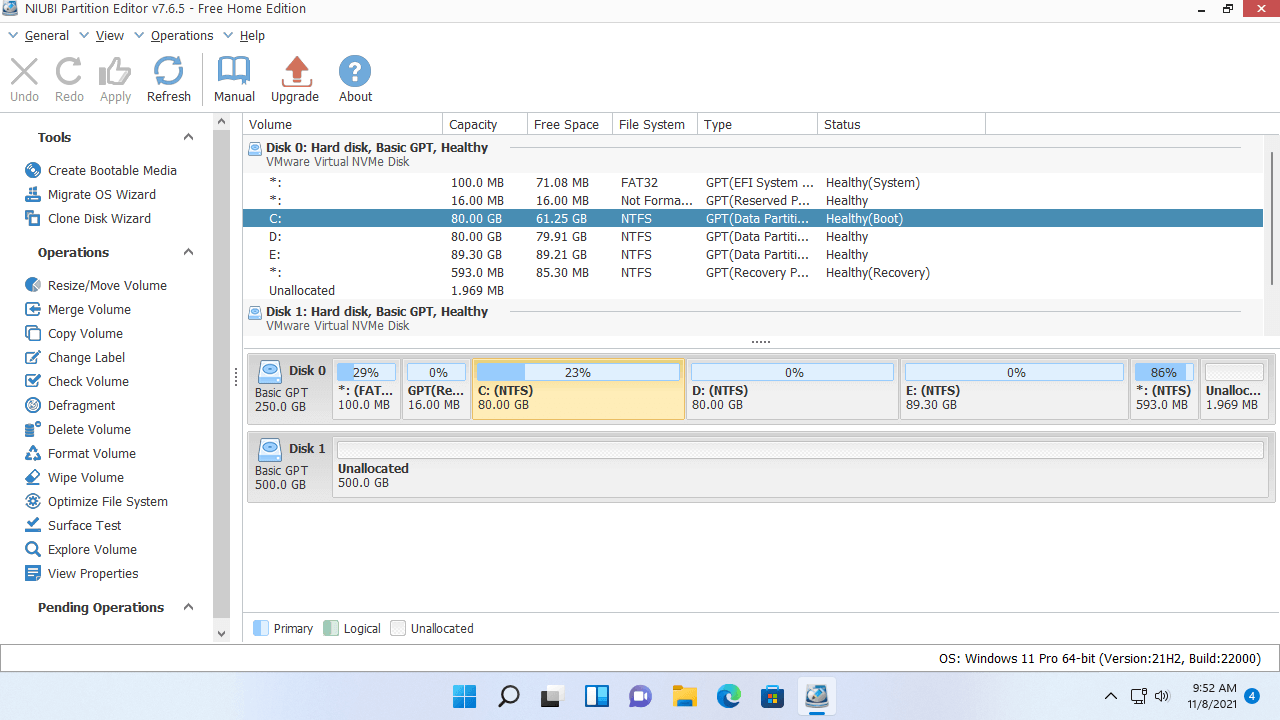
- Download and launch NIUBI Partition Editor. You will see all storage devices with their partition layouts and other information on the main window.
![NIUBI Partition Editor]()
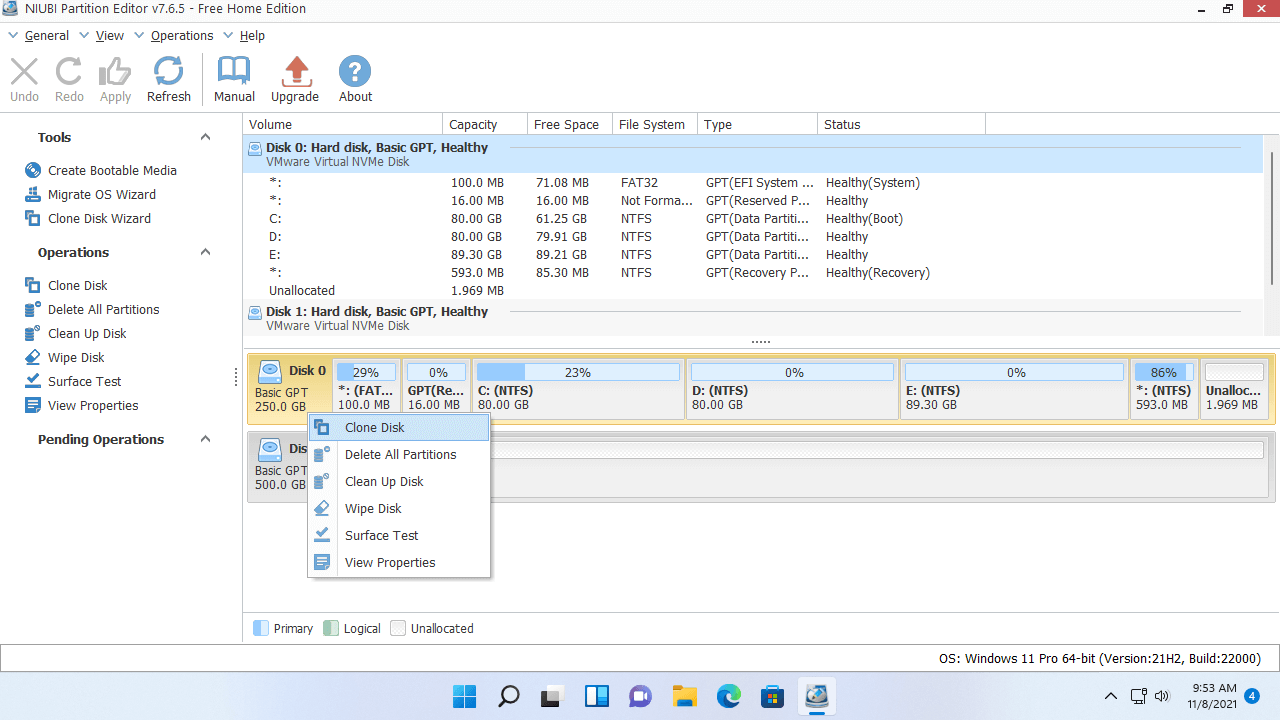
- Right-click the leftmost area of the source disk and select "Clone Disk".
![Clone Disk]()
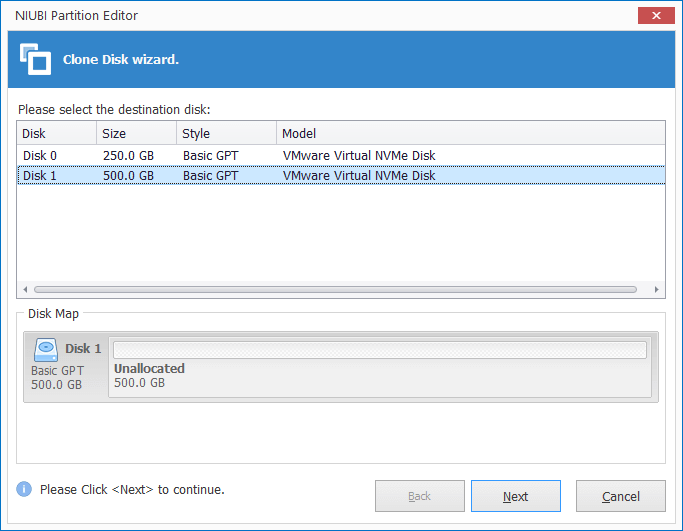
- Select the destination disk in the pop-up window. If there are partitions on the destination disk, you will receive a prompt asking whether to delete these partitions or not. You can only continue the cloning process if you select the option to delete the partitions.
![]()
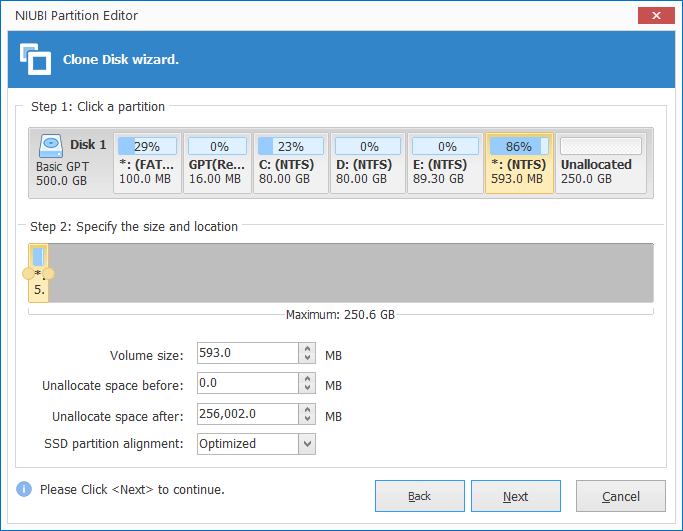
- Edit the size and location of the partitions on the destination disk. Start from the last partition. Drag either border inward or outward to shrink or extend the partition. Drag the middle of the partition to move it alongside adjacent Unallocated space.
![]()
- Click Next and confirm in the next window. Finally, click Apply on the top left to execute.
![]()

- The source and destination disks used for cloning can be an SSD, any type of mechanical disk, or any type of hardware RAID.
- NIUBI Partition Editor can clone a disk/partition in Windows without rebooting the computer.
- It is suggested to select the option to turn off the computer after clicking "Apply". After the clone is complete, you can change the boot order in the BIOS or select the cloned disk to boot from.
Watch the video to see how to clone a disk in a Windows 11 laptop/desktop:
How to Copy Windows 11 Partition to Another Disk
If you want to boot from the destination disk, copying the single C: drive will not work. Instead, you need to follow the steps above to clone the entire disk. When copying a specific data partition in Windows 11, there must be "Unallocated" space on the destination disk. If there is no such space, you can create it with NIUBI Partition Editor. Right-click a large partition on the destination disk, select "Resize/Move Volume", and drag either border inward in the pop-up window to shrink it.
Steps to copy a partition in a Windows 11 laptop/desktop:
- Right-click the source partition (such as D:) and select "Copy Volume".
- Select the Unallocated space on the destination disk and click Next.
- (Optional) Right-click the original drive (D:) and select "Change Drive Letter", then select any available letter in the pop-up window.
- (Optional) Right-click the copied partition, run "Change Drive Letter" again, and select D: in the pop-up window.
- Click Apply on the top left to execute.
If the source partition contains programs or other special files, you had better change the drive letters as described above. Otherwise, simply ignore steps 3 and 4.
Besides cloning disk partitions in a Windows 11/10/8/7/Vista/XP computer, NIUBI Partition Editor helps you perform many other disk partition management operations, such as shrinking, extending, moving, converting, defragging, hiding, and wiping partitions, as well as scanning for bad sectors and optimizing file systems.
 © 2009 - NIUBI Technology All Rights Reserved. |