
If your system disk is GPT in a Windows 11/10 computer, there are an EFI and a Recovery partition by default. Many people do not know what they are used for or how to extend these partitions without damaging the operating system. This article introduces what EFI and Recovery partitions are, why they are on different positions of a disk, and how to extend an EFI/Recovery partition in a Windows 11 computer with a free tool.
What Are EFI and Recovery Partitions in Windows 11
An EFI (Extensible Firmware Interface) system partition, or ESP, is a partition on a data storage device (usually a traditional mechanical disk or SSD) that is used by computers adhering to the Unified Extensible Firmware Interface (UEFI). When a computer is booted, UEFI firmware loads files stored on the ESP to start installed operating systems and various utilities.
An EFI system partition contains several types of files, including:
- The boot loaders or kernel images for all installed operating systems on this computer.
- Device driver files for hardware devices, which are used by the firmware at boot time.
- System utility programs that are intended to be run before an operating system is booted.
- Data files such as error logs.
The EFI partition in Windows 11/10 is formatted with an atypical FAT file system. That means the specification of this file system is based on the FAT file system, but it is independent of the original FAT specification. In the Windows 11 native Disk Management tool, there is no file system shown for the EFI partition.
The Recovery partition in Windows 11/10 is a kind of partition that helps restore the computer to factory settings if there is some kind of system failure. This partition has no drive letter, no file system is shown, and only the Help option is activated in Disk Management. There are 2 types of Recovery partitions in Windows 11/10 computers:
- Windows Recovery partition with a negligible amount of disk space.
- OEM Recovery partition that is set by the computer manufacturer (like Lenovo, Dell, or HP). It occupies a significant amount of disk space because it contains the manufacturer settings for application drivers and other things that allow you to restore these default settings.
How to Create EFI/Recovery Partitions in Different Locations
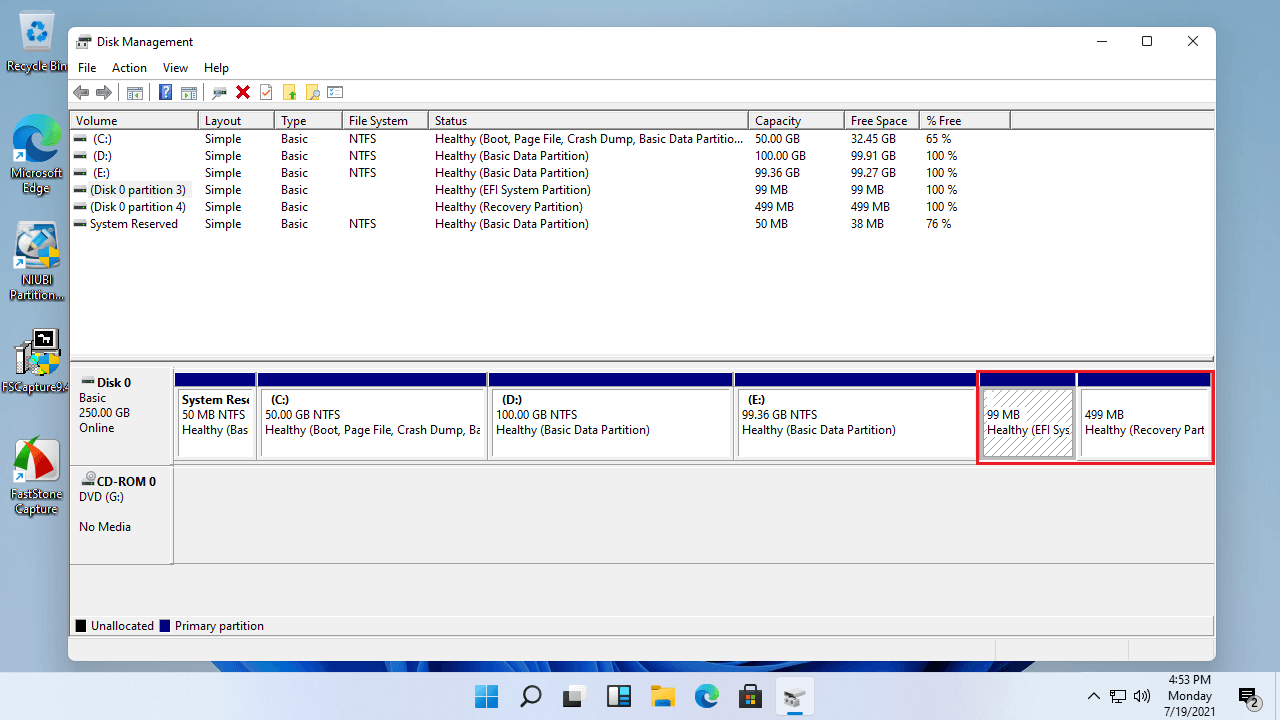
In some Windows 11 computers, the EFI partition is at the front of the disk, but the Recovery partition is at the end of the disk. In some computers, the EFI partition is at the front of a disk, and the Recovery partition is in the middle. In some other computers, the EFI and Recovery partitions are adjacent and at the end of the disk.
Why is there such a difference, and does it impact computer performance? Actually, it doesn't matter where these partitions are created. Windows 11 cannot extend a Recovery/EFI partition with native Disk Management. However, with disk partition software, you can resize, move, or extend an EFI and Recovery partition in a Windows 11 computer without losing data.
Where to create an EFI/Recovery partition when installing Windows 11:
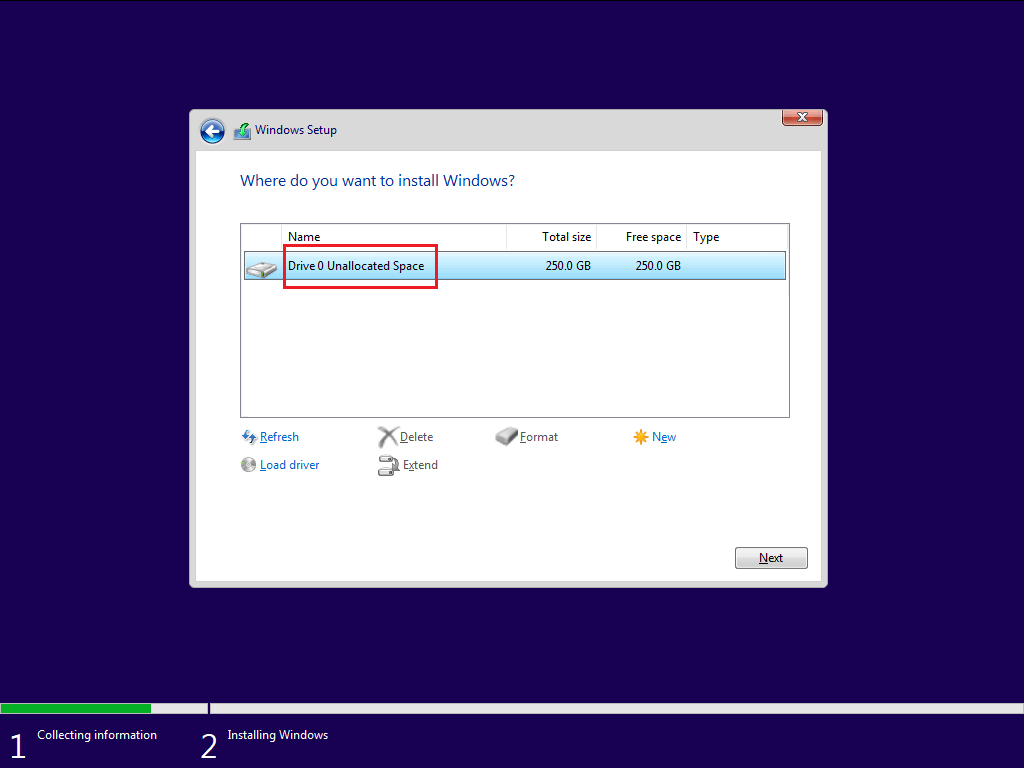
1. If there is no partition on the disk and all disk space is "Unallocated", after installing Windows 11, an EFI and an MSR (Microsoft System Reserved) partition are created at the front of this disk. The Recovery partition is created at the end of the disk.
Tips: The MSR partition is empty and it can be deleted safely. Disk Management doesn't show the small MSR partition. To delete it, you should run third-party software.
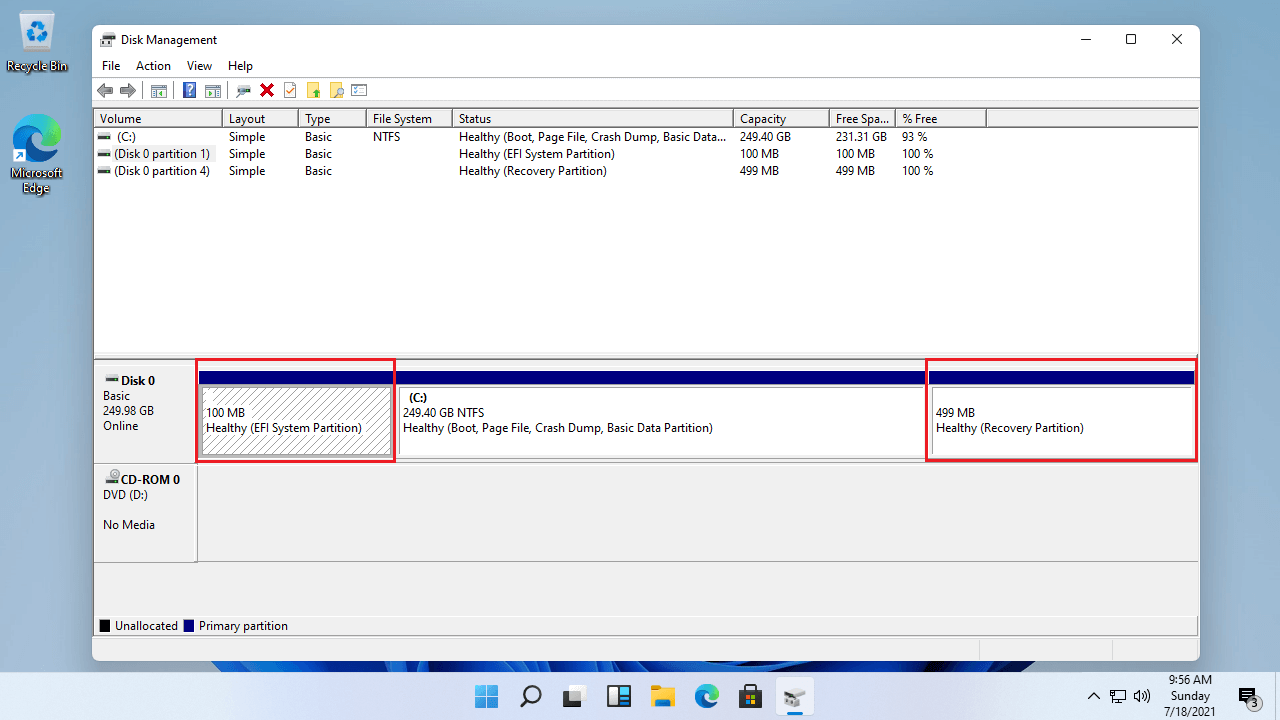
2. If you created several partitions and selected the first one to install Windows 11, the EFI and MSR partitions are also created at the front of this disk. But the Recovery partition is created behind the C: drive, and other partitions are at the end of the disk.

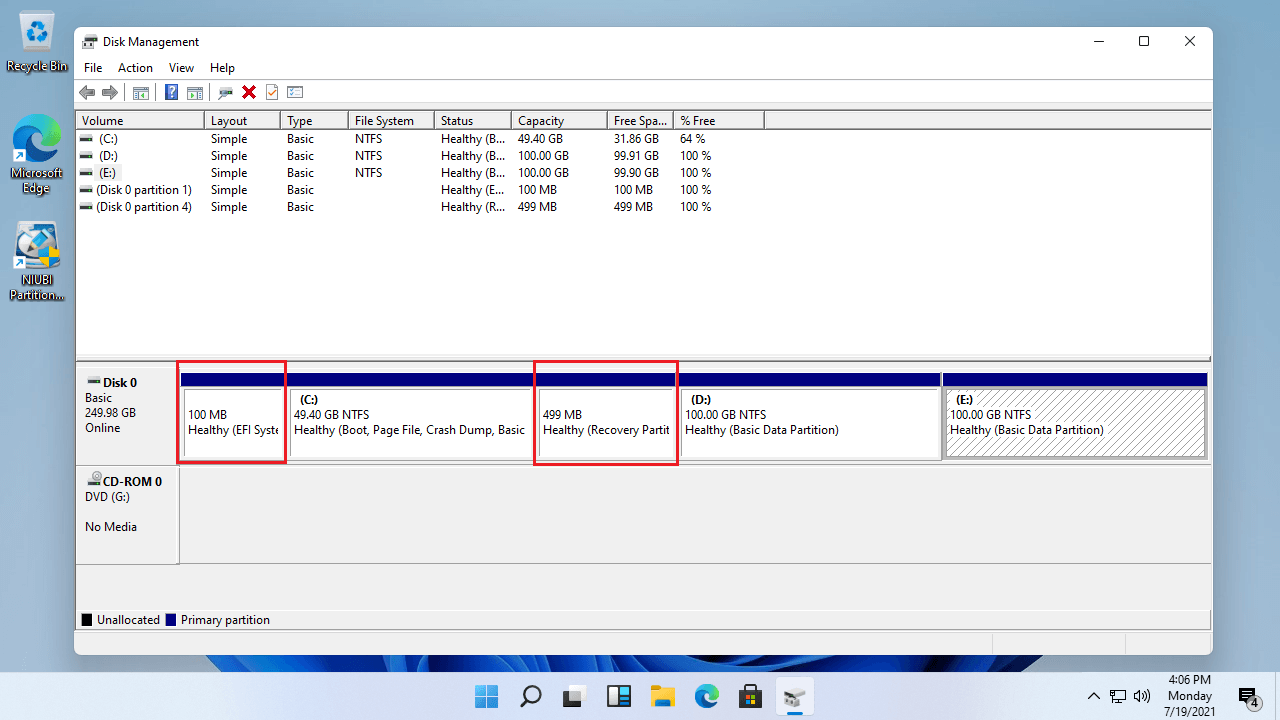
3. If you had Windows 10 on an MBR disk before and converted this disk to GPT, after updating to Windows 11, the EFI and Recovery partitions will be created behind the C: drive. If you shrink the C drive to create more partitions in Disk Management, both the EFI and Recovery partitions will be at the end of the disk.
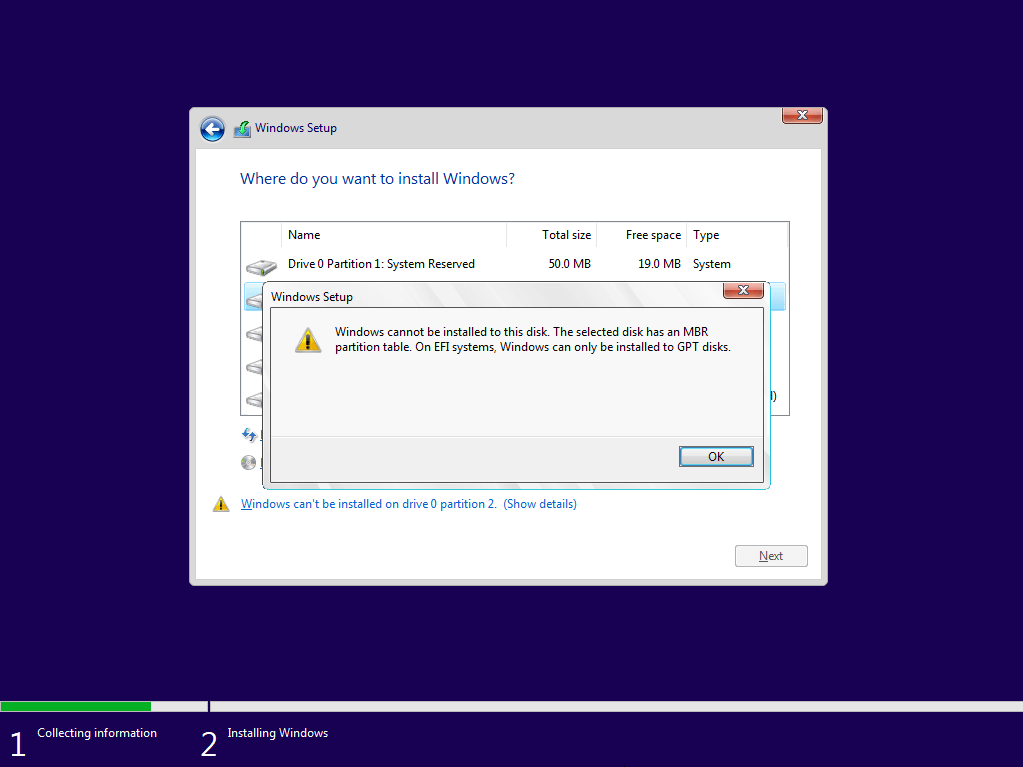
Note: If you enabled UEFI in BIOS, you cannot install Windows 11 on an MBR disk without deleting all existing partitions. If you attempt to install Windows 11 on an MBR disk with an existing partition, you will receive the error message: Windows can't be installed on this disk. The selected disk has an MBR partition table. On EFI systems, Windows can only be installed to GPT disks.
How to Extend EFI and Recovery Partitions in Windows 11
As shown above, EFI and Recovery partitions could be on any position in a Windows 11 computer, so it is impossible to provide one exact step-by-step guide for all scenarios. However, you can follow the universal method below.
How to extend a Recovery/EFI partition in Windows 11 without losing data:
- Download NIUBI Partition Editor. If the EFI or Recovery partition is on the left, shrink its right adjacent partition to make Unallocated space on the left. If the EFI or Recovery partition is on the right, shrink its left adjacent partition to make Unallocated space on the right. To shrink the adjacent partition, right-click it in NIUBI and select "Resize/Move Volume", then drag the left or right border inward in the pop-up window.
- After getting contiguous Unallocated space on either side, right-click the EFI or Recovery partition in NIUBI and run "Resize/Move Volume" again. Drag one border outward to merge this Unallocated space.
- If there is a third partition in the middle of the EFI/Recovery partition and the Unallocated space, right-click the middle partition and select "Resize/Move Volume", then drag the middle of this partition leftward or rightward to move it.
To better show you how to extend an EFI/Recovery partition in a Windows 11/10 computer, there are several videos with different partition layouts. Follow the corresponding method according to your own partition layout.
1. When the EFI partition is at the front of the disk, the C drive is in the middle, and the Recovery partition is at the end of the disk:
The Microsoft Reserved partition is empty and it can be deleted safely.
2. When the EFI partition is at the front of the disk, the C drive and Recovery partition are in the middle, and other partitions are at the end of the disk:
3. When both EFI and Recovery partitions are at the end of the disk:
There is no "System Reserved" partition on a GPT disk. The disk in the video was converted from MBR to GPT.
Besides moving and extending EFI/Recovery partitions in a Windows 11/10 computer, NIUBI Partition Editor helps you perform many other disk partition management operations. It provides a free edition for Windows 11/10/8/7/Vista/XP home computer users. It is 100% clean without any bundled advertisements or plugins.
 © 2009 - NIUBI Technology All Rights Reserved. |