
Many system administrators encounter the problem where the system storage space is automatically exhausted inside production environments. When this low disk space emergency occurs, server OEM support desks typically recommend backing up files, deleting partitions, and restoring everything from backups. While this long maintenance workflow eventually works, nobody wants to suffer the massive server downtime required to rebuild active operating systems. This article explains a 3-step solution to fix the C drive full issue on Windows Server 2016 quickly and easily without data loss.

Step 1 - Clean Up the C Drive to Reclaim Space
Operating a machine while the primary drive partition is running low on storage poses significant stability risks. Under these cramped space conditions, you cannot install critical security hotfixes or update deployment packages. The operating system may lag, experience sudden reboots, or suffer unrecoverable crashes. Therefore, you should resolve this capacity crisis as quickly as possible.
The first step requires cleaning up the system drive to recover valuable free space. Freeing up temporary cache records reclaims storage capacity, ensuring your backend application services continue running stably.
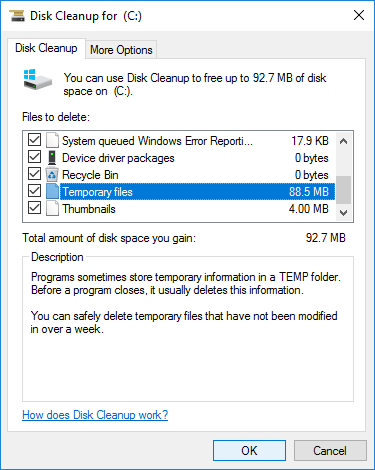
To perform this cleanup safely, Windows Server 2016 includes a native Disk Cleanup wizard. This tool runs quickly and removes temporary caches, logs, and unnecessary files without affecting core databases.
Steps to clean up disk space when C drive is getting full in Windows Server 2016:
- Press Windows + R simultaneously on your keyboard, type cleanmgr, and hit Enter.
- Select the C: drive option from the drop-down menu.
- Wait for the built-in module to scan the drive and calculate removable system junk files.
- Select the checkboxes next to the file categories you intend to purge from the partition.
- Click OK and confirm the action by selecting Delete Files inside the pop-up confirmation dialog box.
On production hardware where drive optimizations have been neglected for a long time, running this process typically reclaims several gigabytes of valuable space instantly.
If running the integrated wizard fails to release at least 20GB of available free space, you must add more space to the C drive from alternative partitions. Otherwise, the reclaimed free space will be quickly consumed by newly generated application caches.
Step 2 - Expand the C Drive with Free Space from Other Volumes
Although partitions are already allocated during system installation, you can safely resize partitions using professional tools. Contracting other data allocations on the same drive releases free space that can be immediately merged into your system volume. Your operating system, databases, applications, and settings remain completely unchanged.
To implement this disk space reallocation, the integrated Disk Management tool and the diskpart interpreter cannot help you. Although they feature shrink and extend properties to help resize partitions, their layout rules are rigid. As illustrated in the console screen, the "Extend Volume" option is greyed out for drive C and drive E immediately after shrinking drive D.

Review the comprehensive guidelines to understand why Disk Management cannot extend C drive in Server 2016 configurations.
While third-party alternatives can relocate unallocated space safely across a hard drive, choosing certified partition software is essential to prevent system failures. Outperforming generic tools, NIUBI Partition Editor integrates advanced data protection mechanisms to secure enterprise hosts:
- Virtual Mode - Stages all planned disk adjustments as pending tasks for visual verification before modifications are written to physical device sectors.
- Cancel-at-will - Enforces data safety parameters, allowing you to abort active configuration workflows at any progression step without risking volume damage.
- 1-Second Rollback - Automatically snaps the host server back to its original state instantly if any software exception occurs during partition resizing.
- Hot-Clone - Duplicates partition states without stopping the machine, creating an immediately bootable fallback drive if the main system disk fails.
Download the system utility and follow the methods shown in the video tutorial to increase C drive free space inside Server 2016:

The operational logic remains identical whether your backend infrastructure deploys local physical disks, hardware RAID arrays, or guest virtual drives inside VMware/Hyper-V environments.
Allocating a larger free space block onto your system partition significantly minimizes the risk of running out of space again in the future.
Step 3 - Optimize Server Configurations
To completely resolve space saturation issues and keep your system drive running smoothly, implement these operational configuration adjustments:
- Redirect new software installation targets away from the system drive to separate data volumes like drive D.
- Modify your active programs' default database logging and file output directories to alternative, larger storage volumes. Update your browser and system "Download" target locations as well.
- Set up a recurring monthly task to run Windows Disk Cleanup, systematically clearing out newly generated update leftovers and temporary logs.
If your local system hard disk is small and all alternative partitions lack free space, you should choose to replace the drive with a larger model. Deploying NIUBI Partition Editor simplifies the path to clone disk partition structures onto a larger SSD, HDD, or RAID array. Beyond shrinking, extending, and cloning disk partitions, this utility helps you manage and optimize your server disk space efficiently.
 © 2009 - NIUBI Technology All Rights Reserved. |