
There are many disk management operations you might need to perform on a Windows 11 computer. For example, when the C drive becomes full, you may need to add free space to the C drive from another partition to expand it. For a brand new disk, you must initialize it and then create and format partitions on it. You may also need to convert disk partition types, copy disk partitions, and more. A reliable disk management tool is very important for helping you manage disk partitions in a Windows computer. This article introduces how to open Disk Management in Windows 11 and compares its capabilities and shortcomings with the best free disk partition software for Windows 11/10 computers.
How to Open Disk Management in Windows 11
There are 2 easy ways to open Disk Management in a Windows 11/10 computer:
- Press the Windows + X keys together (or right-click the Windows logo), and then click Disk Management in the list.
- Press the Windows + R keys together, type diskmgmt.msc, and press Enter.
Right-click any volume or the leftmost area of a disk, and you will see all available options. Unavailable options are grayed out. Some options can be enabled after making changes with third-party software.
Ability of Windows 11 Disk Management Tool
- For a Brand New Hard Disk: Offline, Online, and Initialize. Before saving files to a new disk, this disk must be online and initialized. Then, you can create a new partition and format it with a file system.
- For Unallocated Space: Create one or more partitions.
- For a Disk With Volumes: Convert a Basic disk to a Dynamic disk.
- For a Disk Without Any Volumes: Convert the disk between MBR and GPT, or convert the disk between Basic and Dynamic.
- Windows 11 Disk Management can convert a Basic disk to Dynamic without losing data, but it cannot convert a Dynamic disk back to Basic without data loss.
- To convert a disk between MBR and GPT with Disk Management, you must delete all partitions on it in advance.
Options to an Allocated Partition:

- Open the root directory of the selected partition.
- Mark the partition as Active.
- Change drive letter and path.
- Format the partition.
- Shrink the volume without losing data (in most cases).
- Extend the volume using contiguous Unallocated space on its right side.
- Delete the partition.
- Add a mirror.
If you select Add Mirror, there should be 2 disks and both will be converted to dynamic.
Shortcomings Compared With Free Disk Managers
Compared to third-party disk partition managers, there are two major shortcomings of the Windows 11 Disk Management tool:
- Lack of many functions. Windows Disk Management can only perform basic operations; it cannot convert partition types, clone disk partitions, wipe data, etc.
- Although there are "Extend Volume" and "Shrink Volume" functions, Disk Management cannot extend a partition by shrinking another one. This is because "Extend Volume" only supports NTFS partitions and only works when there is contiguous Unallocated space on the right side. The "Shrink Volume" function cannot generate this required Unallocated space in the correct location.
Best Free Disk Manager for Windows 11/10
To manage disk partitions on a Windows 11 computer, NIUBI Partition Editor is a better choice. It offers a free edition for Windows 11/10/8/7/Vista/XP home computer users. To perform operations on a disk or partition, you just need to click, drag, and drop.
Download this free tool, and you will see all storage devices with their partition layouts and other detailed information on the main window.
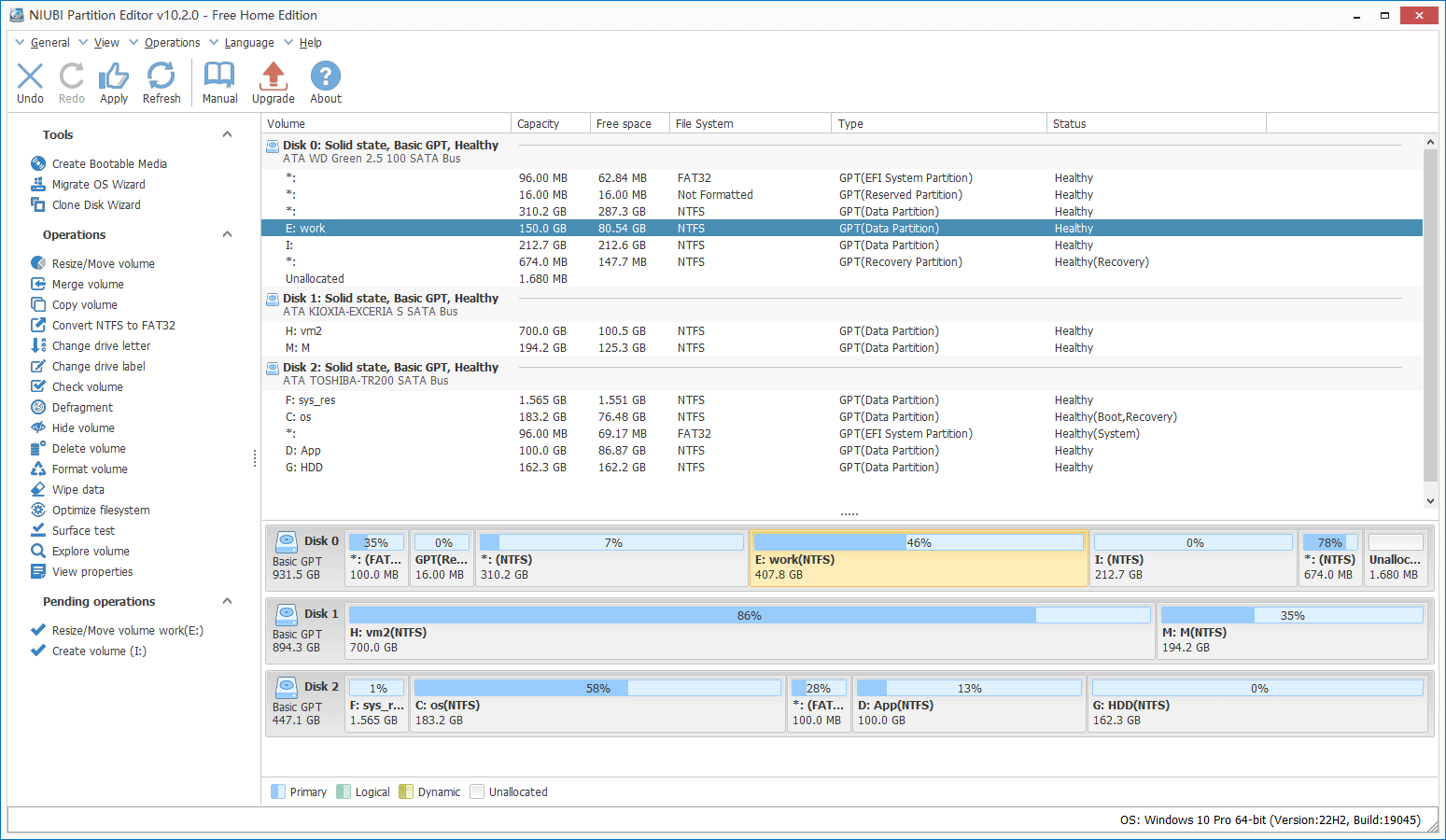
Similar to Windows native Disk Management, you will see available options after right-clicking any partition or the leftmost area of a disk. Unavailable operations are hidden automatically. As a professional disk management tool, NIUBI Partition Editor provides many more options. Compared to other disk managers for Windows 11/10, NIUBI has many advantages:
- Unlike other free tools that disable many core functions, NIUBI Partition Editor Free Edition retains full functionality. In addition, it is 100% clean without any bundled advertisements or plugins.
- Hot Clone - You can clone the system disk before partition modifications or regularly as a backup. In case the source disk fails, you won't lose data and can boot from the cloned disk directly.
- Virtual Mode - all operations are listed as pending for preview, and real disk partitions won't be modified until you click "Apply" to confirm.
- 1-Second Rollback - if it detects any known error while resizing partitions, it automatically reverts the computer to its original status instantly.
- Cancel-at-will - if you applied wrong operations, you can cancel the ongoing tasks at any progress before they finish.
- Advanced file-moving algorithm - shrink, move, and copy partitions 30% to 300% faster.
Watch the video guide to see how to use this free disk partition manager on your Windows 11/10/8/7 computer.
 © 2009 - NIUBI Technology All Rights Reserved. |