
After running a Windows 11 computer for a period of time, many people encounter the problem that the C: drive is running out of space. In this situation, nobody wants to reinstall the operating system and all their programs. It also takes a long time to recreate partitions and restore everything from a backup. Many people ask whether it is possible to extend the C drive in Windows 11 without losing data. The answer is yes. This article introduces detailed steps to extend the C drive in a Windows 11 desktop, laptop, or tablet using free tools.
To enlarge the C: drive in a Windows 11 computer, there are several methods. Select the corresponding method according to your own disk partition configuration.
1. How to Extend C Drive in Windows 11 Without Software
In most computers, there is free space in other partitions on the same disk. You can either delete or shrink these partitions to get Unallocated space, and then add the space to the C drive. If you do not want to use any third-party software, you can try the native Disk Management tool. However, to extend the C drive with Windows 11 Disk Management, your disk partition configuration must meet all the requirements below:
- There is enough free space in the contiguous partition (such as D:), and you must delete it to get Unallocated space on the right side of the C drive.
- The contiguous D: drive on the right must be a Primary partition.
- There are no programs installed in the contiguous partition (D:).
Only if your disk partition configuration meets these requirements and you can delete the partition, should you try Disk Management. Otherwise, jump to the next section to expand the C drive without deleting any partition.
How to extend the C drive in Windows 11 with Disk Management:
- Press the Windows + X keys together and click Disk Management in the list.
- Right-click the contiguous partition D and select the Delete Volume option.
- Right-click the C: drive and select Extend Volume, then follow the Extend Volume Wizard with a few clicks.
2. How to Enlarge C Drive in Windows 11 with Free Software
NIUBI Partition Editor has a free edition for Windows 11/10/8/7/Vista/XP home computer users. To extend the C drive in a Windows 11 computer with NIUBI, you can shrink the D drive and make Unallocated space on the left, so the C drive can be extended quickly and easily. The operating system, programs, and everything else remain exactly the same as before. If there is not enough free space in the adjacent partition (D:), you can shrink any non-adjacent partition on the same disk.
Download this tool, and you will see all storage devices with their partition structure and other information on the main window. In the example below, there are C, D, E, and several small partitions on Disk 0.

How to extend the C drive in Windows 11/10 without losing data:
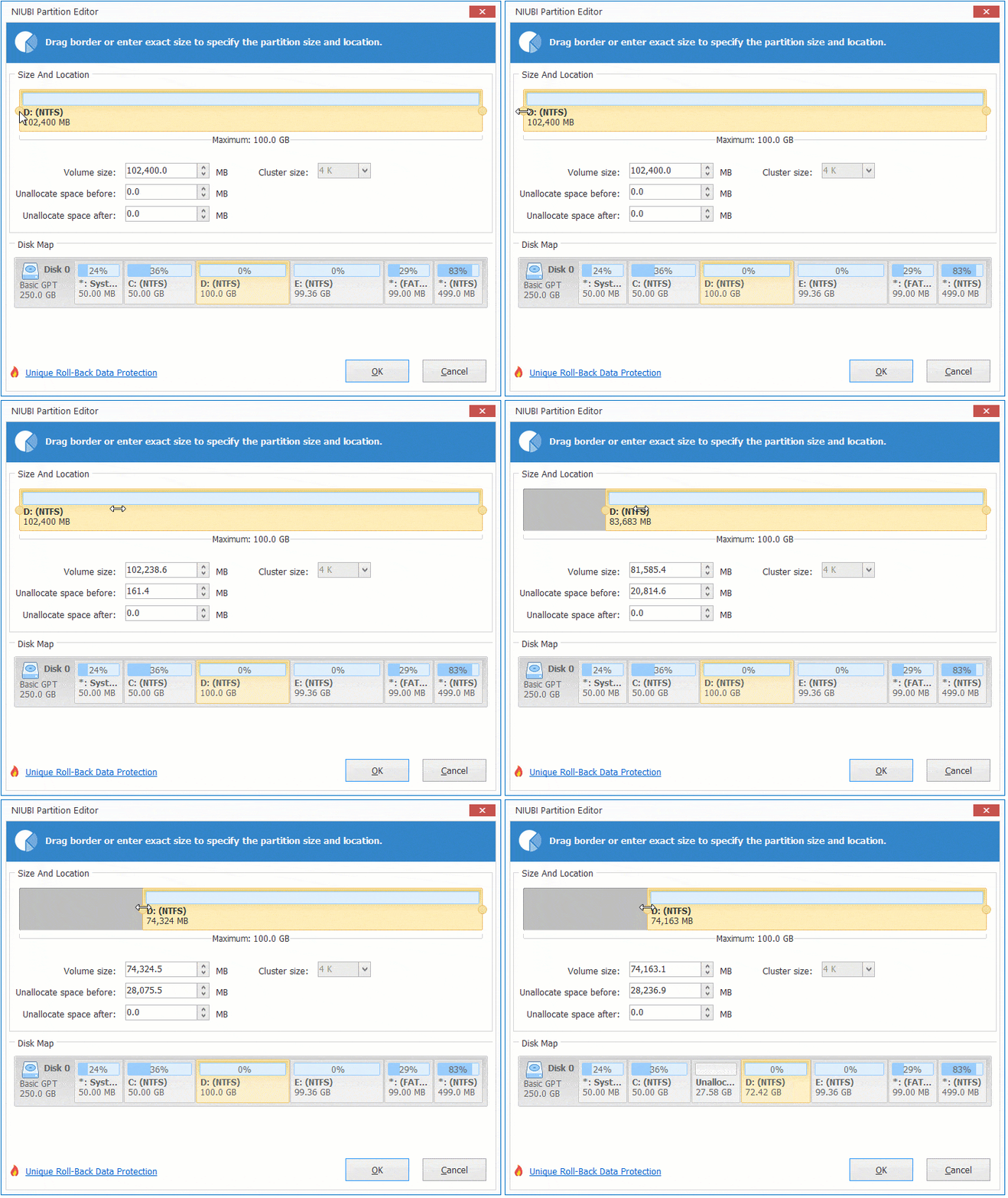
- Right-click the adjacent partition (in this case, D:) and select the "Resize/Move Volume" option. In the pop-up window, drag the left border rightward, or enter an amount directly in the box for "Unallocated space before".
![Shrink partition D]()
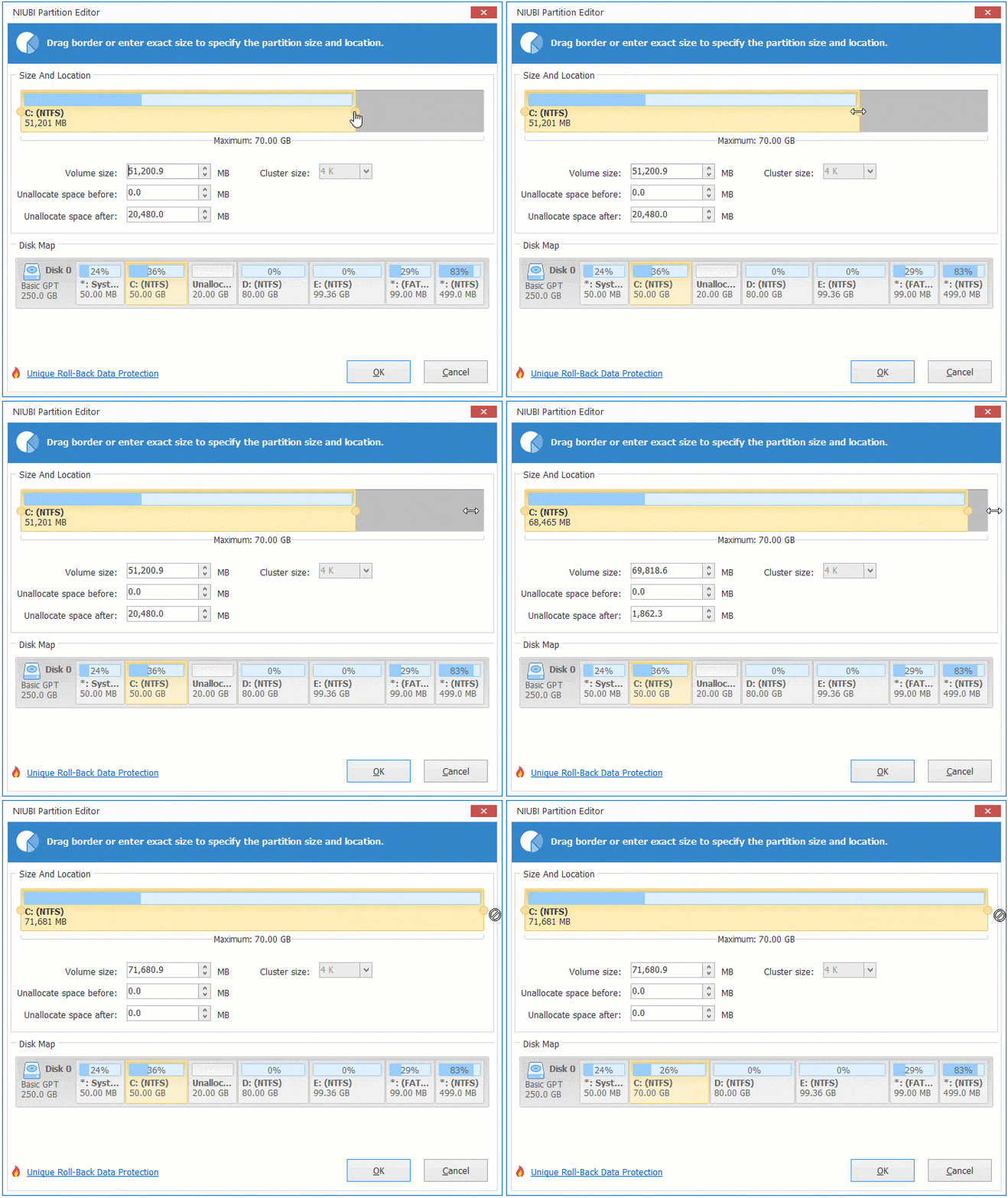
- Right-click the C: drive and select the "Resize/Move Volume" option again. Drag the right border rightward to merge this Unallocated space.
![Extend C drive]()
- Click Apply on the top left to execute.
How to Extend the C Drive with a Non-adjacent Partition
As mentioned above, if there is not enough free space in the adjacent partition D, you can shrink a non-adjacent partition on the same disk. The steps are similar, but there is an additional step to move the middle partition. If there is only a C drive or no available free space on the system disk, jump to the last section.
Steps to increase C drive space in Windows 11 with a non-adjacent partition:
- Run NIUBI Partition Editor to shrink the non-adjacent volume (here, E:) and generate Unallocated space on the left (similar to step 1 above).
- Right-click the partition in the middle (here, D:) and select "Resize/Move Volume". Drag the middle of this partition rightward in the pop-up window. Then the Unallocated space will be moved to the left.
- Extend the C drive with this Unallocated space (same as step 2 above).
- Click Apply to take effect.
Watch the video to see how to extend the C drive in a Windows 11 computer:
3. How to Increase C Drive Space in Windows 11 with a Larger Disk
If there is only a C drive on the system disk, you can clone this disk to a larger one and extend the C drive with the extra disk space. Watch the video to see how to operate:
If there are other partitions on the system disk and you do not want to copy the whole disk, you can move one of the data partitions to another disk, delete it, and add its space to the C drive.
Besides extending the C drive in a Windows 11/10/8/7/Vista/XP computer, NIUBI Partition Editor helps you perform many other disk partition management operations, such as merging, converting, defragging, hiding, wiping partitions, scanning for bad sectors, optimizing file systems, and much more.
 © 2009 - NIUBI Technology All Rights Reserved. |