
As with previous versions, the most common issue on a Windows 11 computer is low disk space on the C drive. When this happens, many people want to increase C drive space without reinstalling the operating system and all their programs. If you have used Windows 7/10 before, you may know that there is an "Extend Volume" option in Disk Management. Windows 11 has the same function to help extend partitions without losing data. However, it only works under restricted conditions. Many users report that Extend Volume is disabled for the C drive in Windows 11 Disk Management. This article explains why Extend Volume is grayed out in Windows 11 and how to solve this problem easily.
Why Extend C Drive Greyed Out in Windows 11 Computer
The C: drive is where the operating system runs from, so it differs from data partitions in some aspects. In a Windows 11 computer, you can create a data partition as Primary or Logical and format a partition with the FAT32 or NTFS file system. However, the system partition C is always NTFS and Primary.
2 common reasons why extending the C drive is disabled in a Windows 11 computer:
1. No Unallocated Space Next to the C Drive
First of all, you should know that the size of a physical hard disk is fixed; a 250GB disk cannot be decreased to 200GB or increased to 300GB. If you want to extend a partition, you must delete or shrink another one to get Unallocated space on the same disk. If you use a virtual disk or some types of hardware RAID arrays, you can expand the disk to get additional Unallocated space.
In most Windows 11 computers, the system disk is a solid-state drive (SSD). If you right-click the C drive in Windows 11 Disk Management without Unallocated space on the same disk, of course, Extend Volume is disabled for the C drive.

To enable Extend Volume for the C drive in Windows 11 Disk Management, there must be contiguous Unallocated space. In addition, this space must be on the right side of the C drive.
If you have shrunk the contiguous partition D: (or E:), the Unallocated space is non-adjacent to the C drive. This is the reason why Extend Volume is grayed out for the C drive in Windows 11 after shrinking another partition.
2. The Adjacent Partition Is Logical
When "Extend Volume" is disabled for the C drive in Windows 11 Disk Management after shrinking D, some people try to delete the D drive. Extend Volume will be enabled for the C drive only if the contiguous partition D is Primary. Otherwise, you still cannot extend the C drive after deleting D.
Tips: There is no such issue on GPT disks. The system disk is GPT in most Windows 11 computers.

Other Reasons Why Windows 11 Extend Volume Option Is Disabled
When you are extending a data partition in Disk Management, the rules are the same: there must be contiguous Unallocated space on the right side. If you want to extend a partition by deleting the adjacent one on the right, both partitions must be the same type—either Primary or Logical. Besides the reasons above, there are additional reasons why Extend Volume is grayed out in Windows 11 Disk Management:
1. File System Is Not Supported
Windows 11 Disk Management can only shrink and extend NTFS partitions; FAT32 and other partitions are not supported.
2. Special Partitions Are Not Supported
There are some small, special partitions on a system disk, such as EFI and Recovery partitions. Windows 11 native tools cannot extend these volumes.
3. 2TB Restriction on MBR Disks
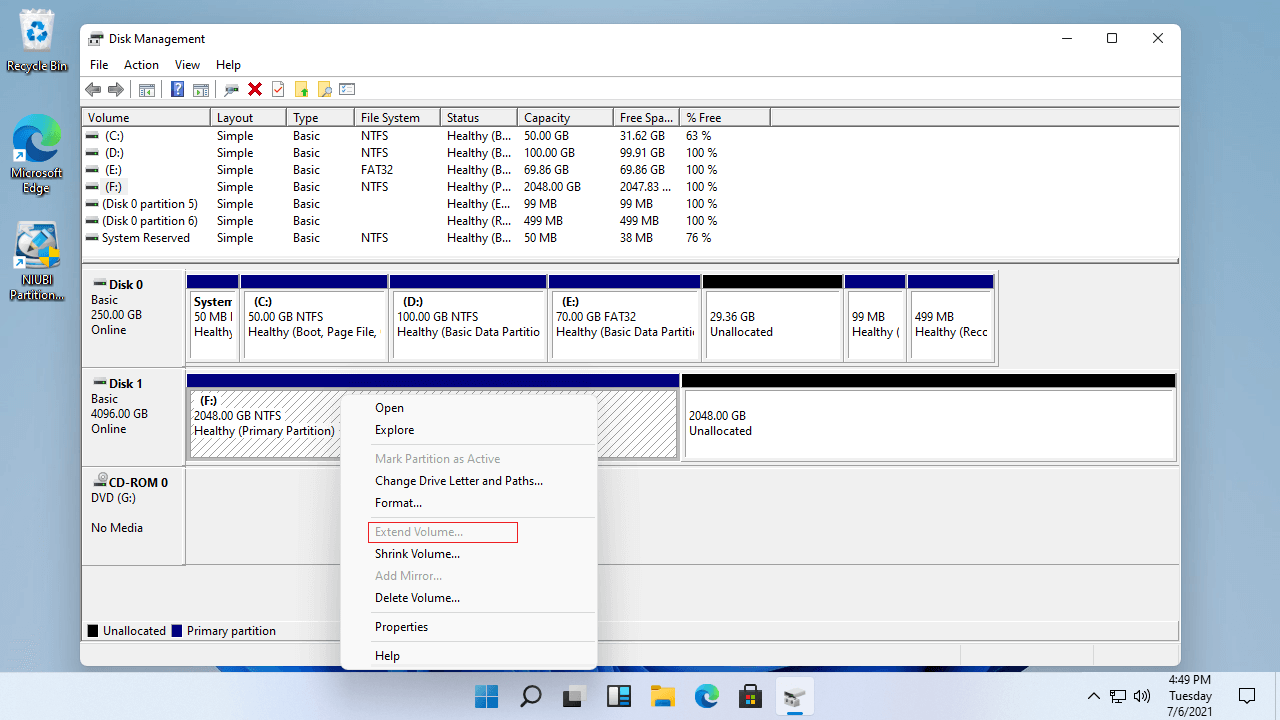
Hard disk drives are much larger nowadays. Many people use 2TB or even 4TB disks for personal computers. If you initialized a 4TB disk as MBR, you can only use 2TB of space. The remaining 2TB remains as Unallocated, and you cannot create new volumes with it. When you right-click a 2TB partition, even if it is NTFS and there is adjacent Unallocated space, Extend Volume is grayed out in Windows 11 Disk Management.
What to Do When Extend Volume Greyed Out in Windows 11
Press the Windows + X hotkeys and click Disk Management in the list. Find out the reason why the Extend Volume option is grayed out, and then follow the corresponding method below.
Method 1 - Move Partition and Unallocated Space
Whether extending the C drive is grayed out in Windows 11 or Extend Volume is disabled for a data partition, when you cannot extend a partition because of non-adjacent Unallocated space, run NIUBI Partition Editor to move the partition and make the Unallocated space adjacent.
To move a partition when Extend Volume is grayed out in Windows 11:
- Download NIUBI Partition Editor, right-click the D: drive, and select the "Resize/Move Volume" option. Put the mouse pointer in the middle of the D drive and drag it rightward in the pop-up window; then the Unallocated space will be moved to the left.
- Right-click the C: drive and select "Resize/Move Volume" again. Drag the right border rightward to combine this Unallocated space.
- Click OK to go back to the main window, then click Apply on the top left to take effect.
Watch the video to see how to operate:
Method 2 - Resize Partition with NIUBI
If you want to shrink or extend a FAT32 partition, you can resize it with NIUBI Partition Editor. There is no difference between resizing an NTFS and a FAT32 partition, or resizing a Primary and a Logical partition. Follow the steps in the video.
Method 3 - Convert 2TB+ Disk to GPT
When you cannot extend a partition larger than 2TB in Windows 11, follow the steps to convert the MBR disk to GPT. After that, you can extend the partition with Unallocated space easily.
Besides helping to fix the Extend Volume grayed-out issue in Windows 11/10/8/7, NIUBI Partition Editor helps you perform many other disk partition operations, such as moving, merging, converting, hiding, defragging, and wiping partitions, as well as scanning for bad sectors and optimizing file systems.
 © 2009 - NIUBI Technology All Rights Reserved. |