
After running a Windows Server 2016 instance for a period of time, the initial partition size configuration may no longer be ideal. The most common issue encountered is that the C drive becomes full. Many server administrators wonder if it is possible to change the partition size in Windows Server 2016 without losing data. The answer is yes. To adjust partition sizes in Windows 2016 Server, you can utilize the native Disk Management console or opt for third-party partitioning software. The built-in Disk Management utility is safe but comes with many limitations. Conversely, third-party disk partition software is much more powerful but may carry a potential risk of data loss. This article introduces how to safely decrease and increase partition sizes in Windows Server 2016 using both types of tools.
Adjust Partition Size With Server 2016 Disk Management
Windows Server 2016 Disk Management features native Shrink Volume and Extend Volume functions to help change partition sizes without data loss (though it is not 100% guaranteed). As the names imply, "Shrink Volume" is used to decrease partition size, while "Extend Volume" is designed to increase partition size. However, please note that not all disk partitions can be shrunk or extended.
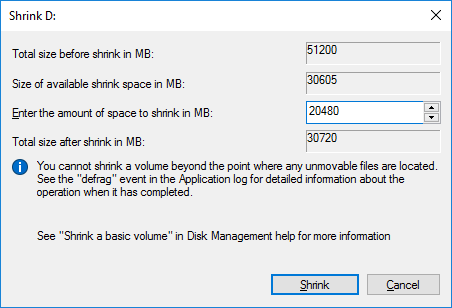
How to decrease partition size in Server 2016:
- Press Windows + X on the keyboard and click Disk Management from the list.
- Right-click the drive you want to decrease (which must be formatted as NTFS or ReFS) and select Shrink Volume.
- Enter the desired amount of space in MB and click Shrink to execute.
How to increase partition size in Windows Server 2016:
- Right-click the adjacent partition on the right (such as D:) in Disk Management and select Delete Volume.
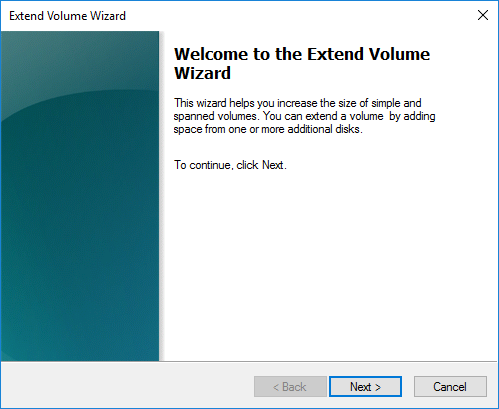
- Right-click the contiguous partition on the left (such as C:) and select Extend Volume.
- In the Extend Volume Wizard window, simply click Next repeatedly until you reach Finish.
Limitations when changing partition sizes in Windows 2016 Server via Disk Management:
- It can only shrink and extend NTFS and ReFS partitions; other file system types are not supported.
- It can only generate unallocated space on the right side when shrinking a partition.
- If there is an underlying file system error, it cannot shrink the partition. Furthermore, if unmovable files are present, it can only reclaim a very limited amount of space.
- It can only extend a partition when there is adjacent unallocated space located immediately on its right side.
- The target partitions you wish to delete and extend must match identical configurations, matching either as both Primary partitions or both Logical drives.
Because of these architectural limitations, Disk Management is often not the best choice. For better results, it is recommended to run safe and powerful disk partition software instead.
Change Partition Size in Windows Server 2016 With Safe Software
With professional server partition software, these artificial limitations do not apply. However, it is still highly recommended to back up your server first, as complex partition updates carry potential risks of system damage and data loss. Standing out from other utilities, NIUBI Partition Editor features powerful built-in technologies to protect your server system and data:
- Virtual Mode - All operations will be listed as pending for preview; actual disk partitions will not be modified until you click "Apply" to confirm.
- Cancel-at-will - If you apply incorrect operations, you can cancel the ongoing tasks safely without destroying partitions.
- 1-Second Rollback - If any known error is detected while adjusting partition sizes, it automatically reverts the server to its original state instantly.
- Hot Clone - This feature allows you to clone disk partitions within Windows without server interruption. You can clone the system disk regularly as a backup, enabling you to boot from the cloned disk immediately if the primary system disk fails.
Download NIUBI Partition Editor. You will see all disk partitions along with detailed parameters and their graphical layout on the right. Available operations are listed on the left side and are also accessible via right-clicking.

How to Split and Merge Partitions
If you want to create more volumes without starting from scratch, you can shrink a large volume to generate unallocated space. Conversely, if there are too many partitions, you can merge two partitions without data loss in just a few clicks. All files within the source partition will be moved to the root directory of the target partition automatically.
How to split partition:
How to merge partitions:
How to Decrease and Increase Partition Size
Most server administrators intend to change the partition sizes of both the C: and D: drives because the C drive is running out of space while plenty of free space remains on D. You can shrink the D drive to generate unallocated space on its left side, and then add it directly into the C drive. To adjust partition sizes, you simply need to drag and drop on the visual disk map within NIUBI.
How to decrease/increase partition size in Windows Server 2016 with NIUBI:
- Right-click the D: drive and select "Resize/Move Volume". Drag the left border toward the right in the pop-up window. (You can also enter a specific amount in the Unallocated space before box.)
- Right-click the C: drive and select "Resize/Move Volume" again, then drag the right border toward the right side to combine this unallocated space.
- Click Apply on the top left to execute. (Any operations configured before this step only function in virtual mode.)
Video guide to change partition size in Windows 2016 server:
- The steps remain highly similar if you want to increase the partition size of D or any other data volume.
- If you want to extend the C drive using a non-adjacent partition like E, there is an additional intermediate step required to move partition D to the right side.
- If no free space is available anywhere on the disk, you can copy the disk to a larger one and increase partition sizes using the newly added space.
- If you want to change virtual partition sizes within VMware or Hyper-V, the process is identical. Simply install NIUBI onto the guest virtual server and follow the steps outlined above.
- If you want to resize a hardware RAID partition, the steps remain completely the same. Do not break the array or perform any manual operations on the RAID controller.
Besides resizing partitions in Windows Server 2016/2019/2022/2025 and previous Server 2012/2008/2003, NIUBI Partition Editor helps you move, merge, convert, defragment, hide, or wipe partitions, set read-only attributes, scan for bad sectors, and perform much more.
 © 2009 - NIUBI Technology All Rights Reserved. |