
When the system C drive is running low on disk space, you can clean up the C drive to free up storage capacity. If you can delete a significant amount of junk files, the low disk space issue can be resolved immediately. However, if you cannot get enough free space on the C drive after cleaning it up, you can add more free space from other partitions. To clean up the C drive, Windows Server 2016 provides a native "Disk Cleanup" utility that can quickly and safely delete most common types of junk and unnecessary files. To run Disk Cleanup in Windows Server 2016, you can either follow the wizard or execute the cleanmgr command.
How to Clean Up the C Drive in Windows Server 2016 with Disk Cleanup
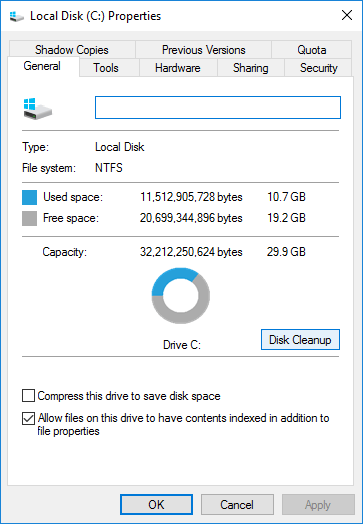
- Press the Windows + E hotkeys together to open File Explorer. Then, right-click the C: drive and select Properties.

- Click Disk Cleanup in the pop-up window.
![Disk Cleanup]()
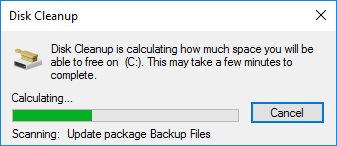
- Wait for the Server 2016 Disk Cleanup utility to scan for junk and unnecessary files. (The scanning time depends on server performance and the total volume of junk files.)
![Scanning]()
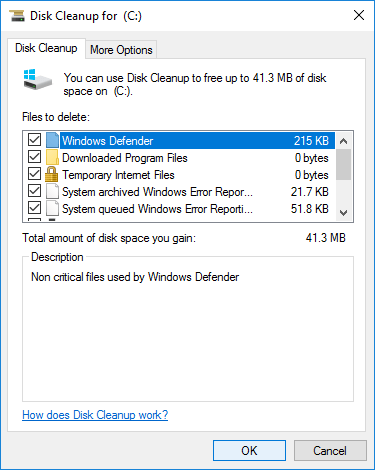
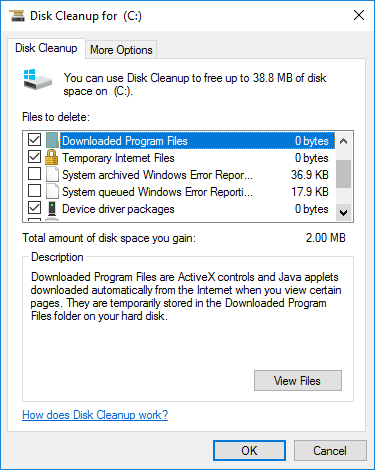
- Select the checkboxes next to the files you want to delete and click OK. (If you are unsure what a file type represents, click it to view its description at the bottom.)
![Select files]()
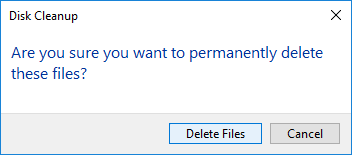
- Click Delete Files in the pop-up confirmation window to start the process.
![Confirm]()

How to Run Disk Cleanup in Windows Server 2016 with the Cleanmgr Command
Press Windows + R together on the keyboard to open the Run dialog, type cleanmgr.exe, and press Enter.
You will see all common switches available for the Server 2016 Disk Cleanup tool:
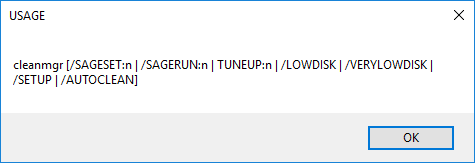
The standard list includes:
- /D DRIVELETTER
- /SAGESET:n
- /SAGERUN:n
- /LOWDISK
- /VERYLOWDISK
- /SETUP
- /AUTOCLEAN
How to run the cleanmgr command in Windows Server 2016 to clean up the C drive:
Press Windows + R on the keyboard to open Run, type cleanmgr.exe /d c and press Enter.
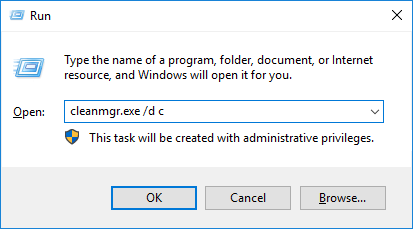
Explanation: This runs Disk Cleanup specifically on the C drive, where "c" represents the drive letter without a colon.
Certain file types are selected by default. If you wish to clear other files, manually select their checkboxes before clicking OK.
Run cleanmgr.exe /lowdisk /d c
The /LOWDISK switch is ideal when a drive is critically low on space. When it launches, Disk Cleanup opens with all checkboxes selected by default.
Run cleanmgr.exe /verylowdisk /d c
This functions similarly to the /LOWDISK switch, but it cleans up all junk files automatically. It skips the confirmation prompt and displays a final dialog box indicating your newly updated free disk space.
Important Step After Cleaning Up the C Drive
The Windows Server 2016 Disk Cleanup utility is highly beneficial for servers that have never been cleaned or have not had space freed up for a long time. However, if you cannot obtain more than 20 GB of free space for the system C drive, it is recommended to add more free space from other volumes. Otherwise, the remaining free space will quickly be consumed by newly generated junk files. This is why many administrators find that the C drive is getting full again within a short period.
NIUBI Partition Editor can safely shrink and extend partitions without data loss, allowing you to transfer the unallocated free space from other volumes directly to the C drive. Your operating system, installed applications, and configuration data remain completely intact. To accomplish this task, you simply need to click, drag, and drop on the visual disk map.
Download NIUBI Partition Editor and follow the steps in the video tutorial:

Note: The procedure is identical whether you utilize SSDs, HDDs, hardware RAID arrays, or host a virtual server instance within VMware/Hyper-V. In addition to resizing partitions, this disk partition software assists you in merging, converting, defragmenting, cloning, hiding, or wiping partitions, as well as scanning for bad sectors and much more.
Additional Options:
- Avoid installing all software applications directly onto the C drive.
- Modify the default installation paths or output directories of your programs to alternative partitions.
- Redirect the default "Downloads" folder directory to a larger data partition.
- Run Disk Cleanup on your Windows 2016 server monthly to proactively remove newly accumulated junk files.
 © 2009 - NIUBI Technology All Rights Reserved. |